How they work:
- Cookies are small files created by websites you visit, that make your online experience smoother by saving browsing data.
- The cache remembers parts of pages, like images, to help them open faster during your next visit. This also saves information such as log in details, which is why you don’t have to log in again each time you return to our website from the same browser & device.
- Clearing these, however, can fix certain problems, such as loading or formatting issues, or allows you to sign into a different account.
- You can also use Incognito/Private Browsing Mode to temporarily browse without any cache or cookies stored from that session, and without using any previously stored data.
TABLE OF CONTENTS
Windows:
Chrome (Windows)
- On your computer, open Chrome
- At the top right, click More


- Click Delete browsing data.
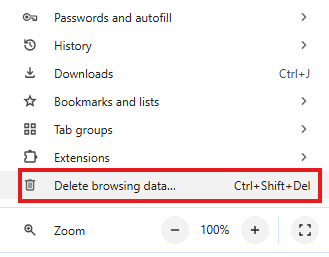
- At the top, choose a time range. To delete everything, click More and select All time
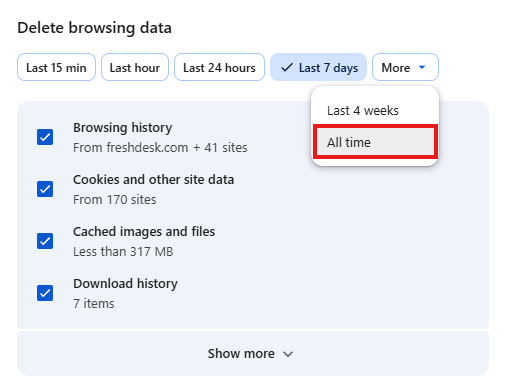
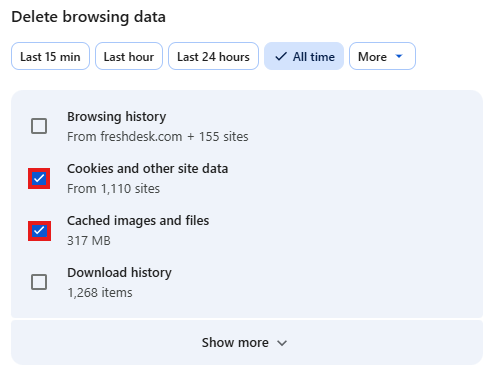
- Next to Cookies and other site data and Cached images and files, check the boxes
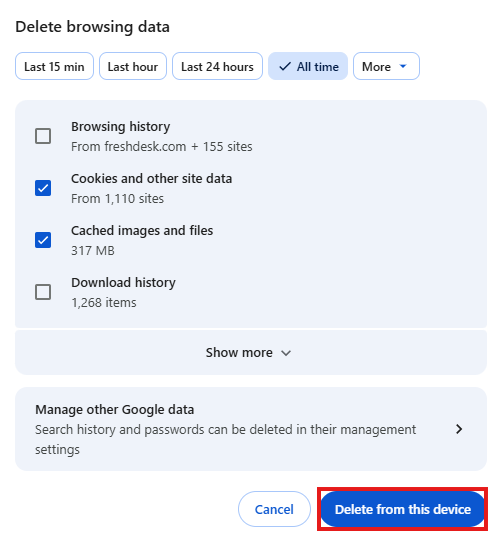
- Click Delete from this device.
Firefox (Windows)
- Select the main toolbar in the top right corner.

- Select Settings
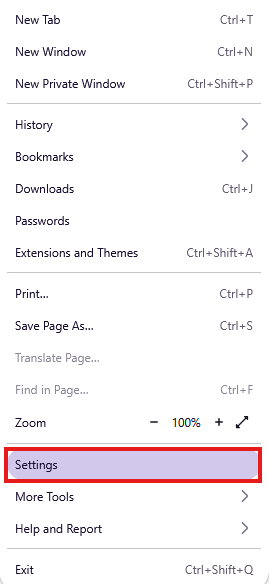
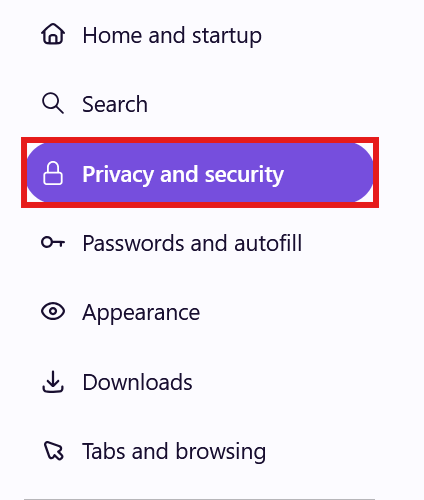
- Select Privacy & Security from the left side of your screen
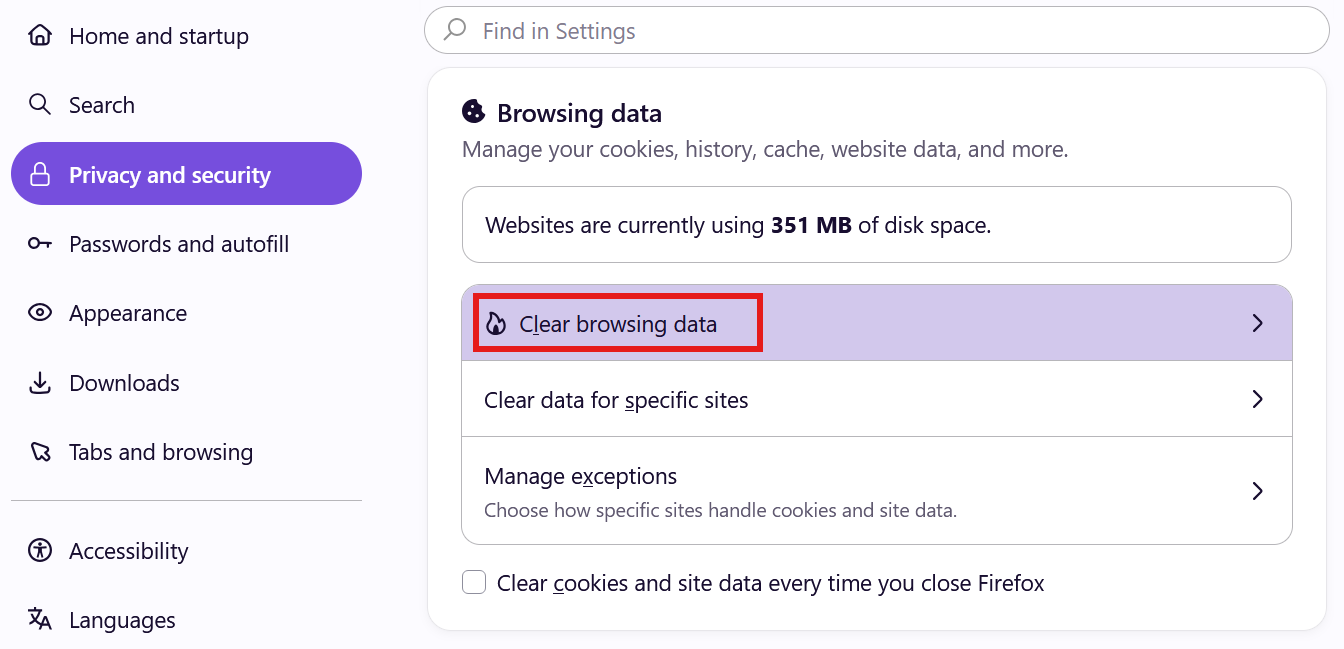
- Scroll down until you arrive at the Browsing Data section and select Clear browsing data
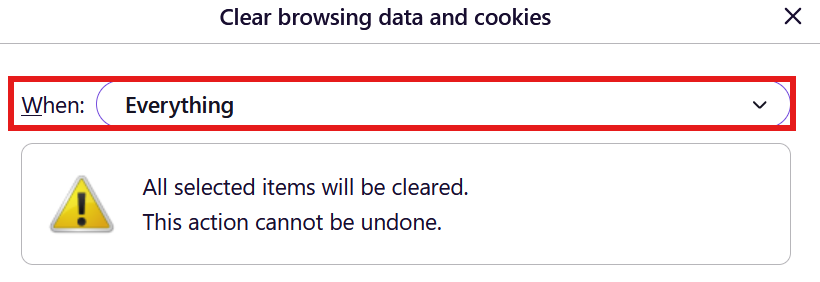
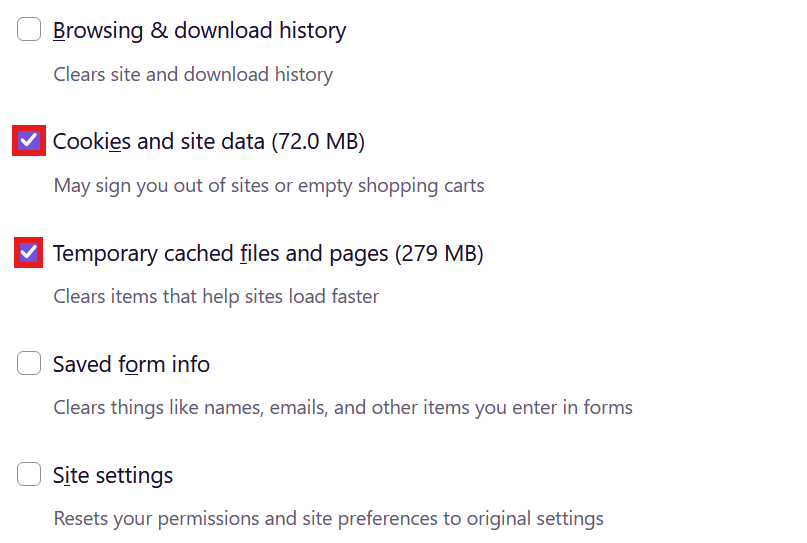
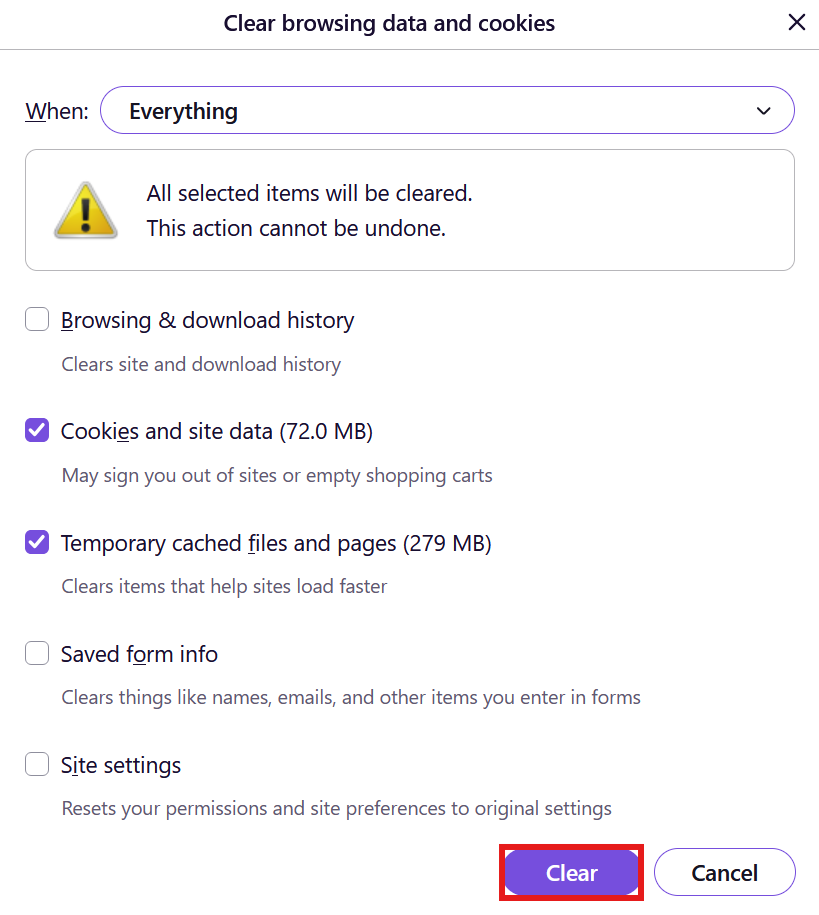
- Set When to Everything
- Select Cookies and site data and Temporary cached files and pages
- Click Clear
Internet Explorer 11 (Windows)
- Click the Gear Icon on the top right corner of your browser page
- Navigate Safety > Delete browsing history

- Select Temporary Internet files and website files and Cookies and Website data

- click Delete
Edge (Windows)
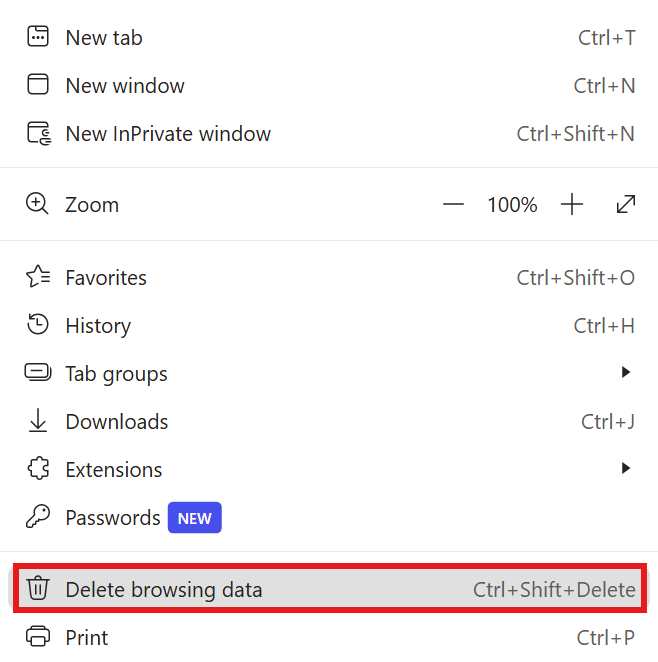
- Select the main toolbar in the top right corner.

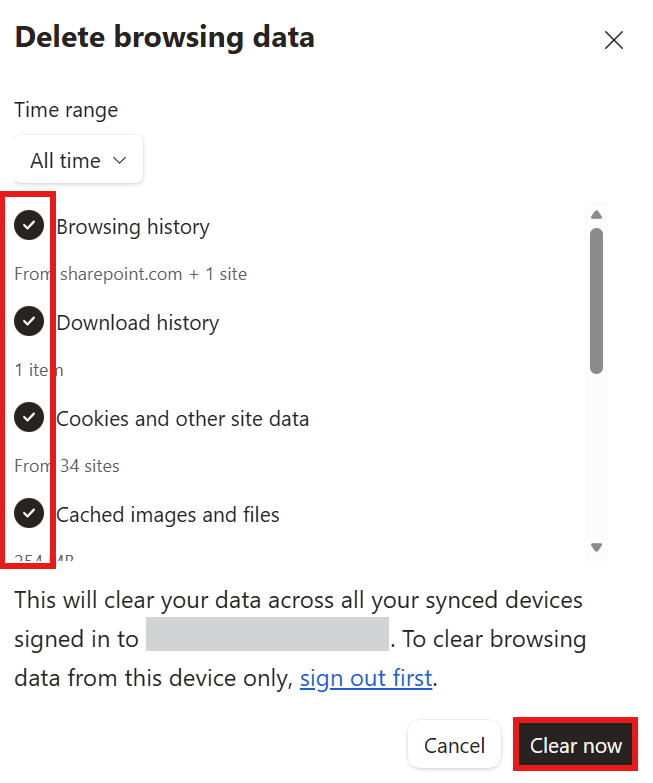
- Select Delete browsing data
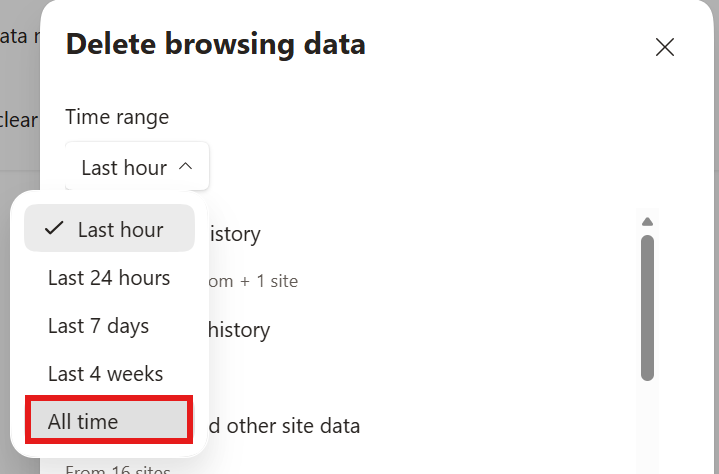
- Select the dropdown to choose a time range, and select All time, and check all of the boxes, then select Clear now
Mac:
Chrome (Mac)
On your Mac, open Chrome
- At the top right, click More

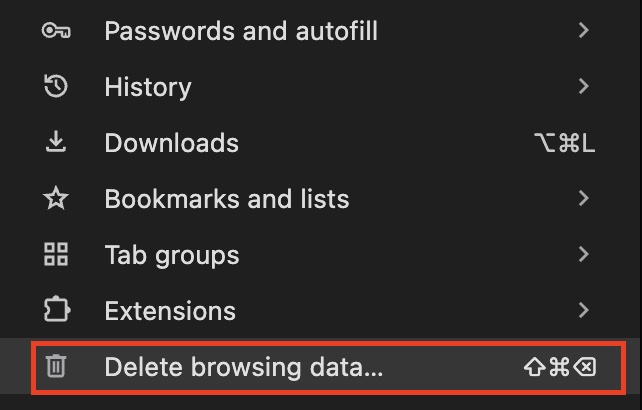
- Click Delete browsing data
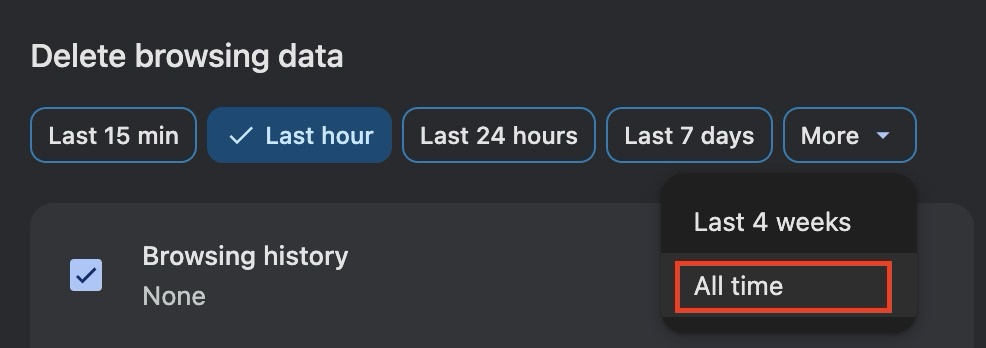
- Set the time range to All time
- Select the items you would like to delete, including Cookies and other site data
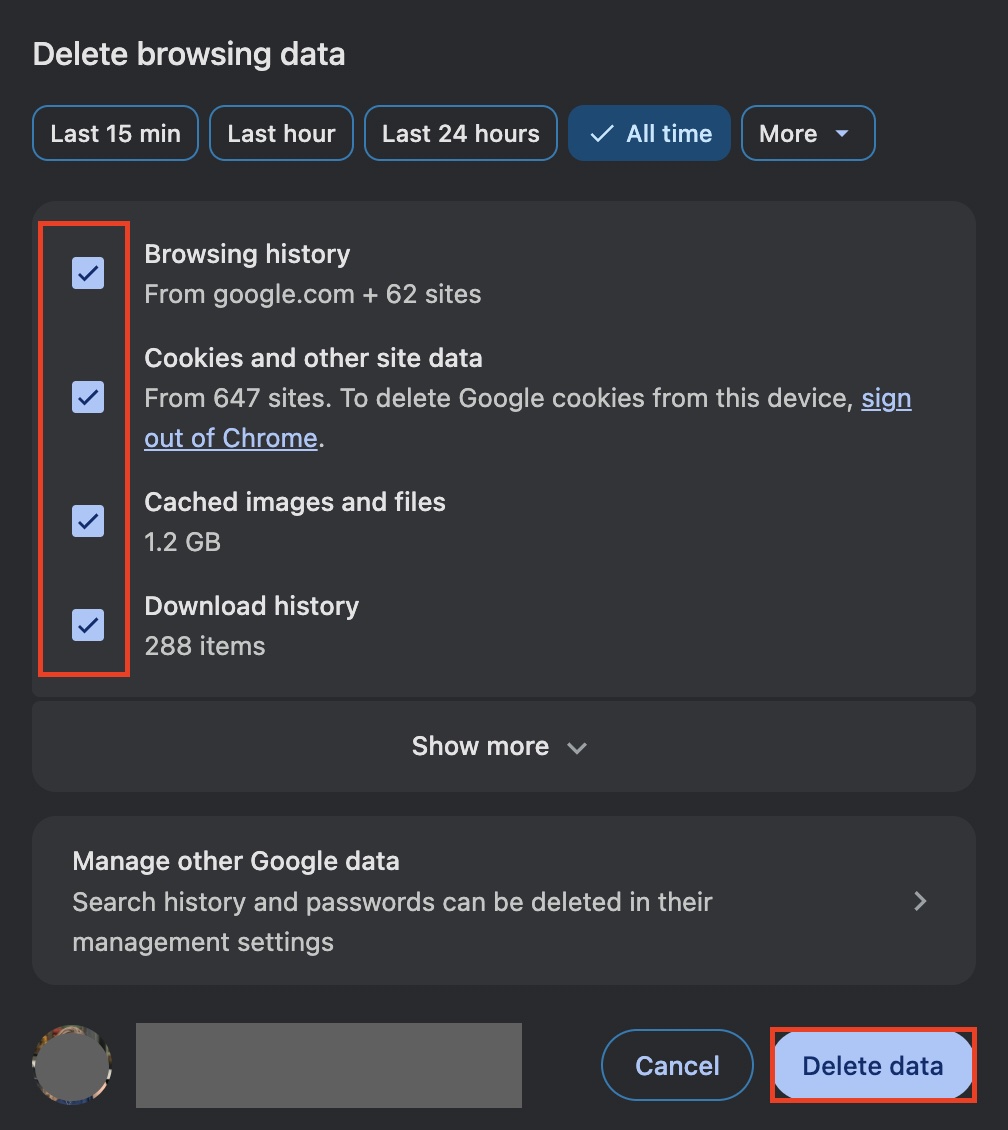
- Click Delete data
Firefox (Mac)
- Select the main toolbar in the top right corner.

- Select Settings
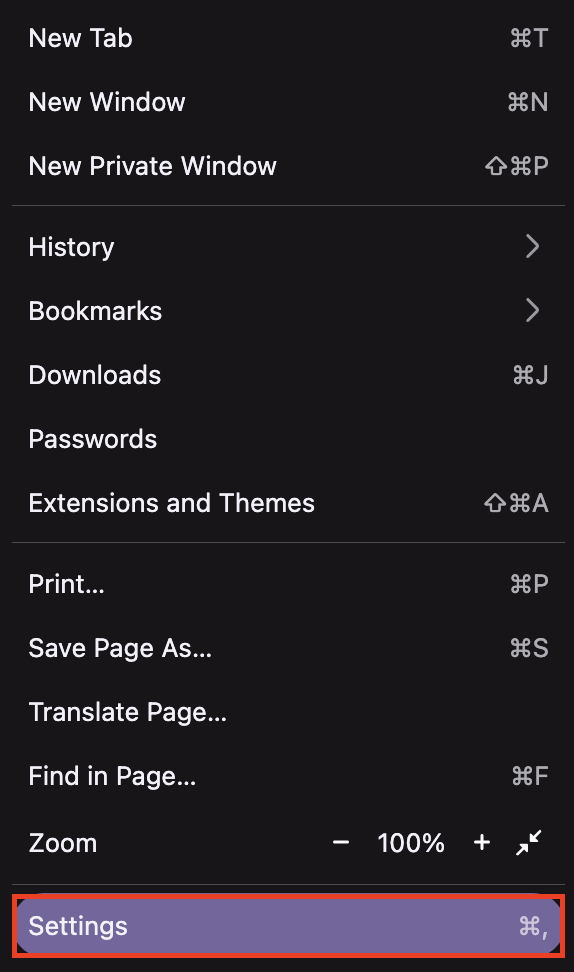
- Select Privacy & Security from the left side of your screen
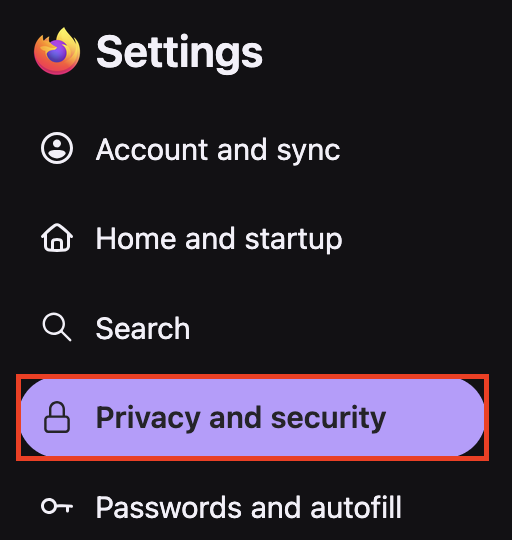
- Scroll down until you arrive at the Browsing Data section and select Clear browsing data
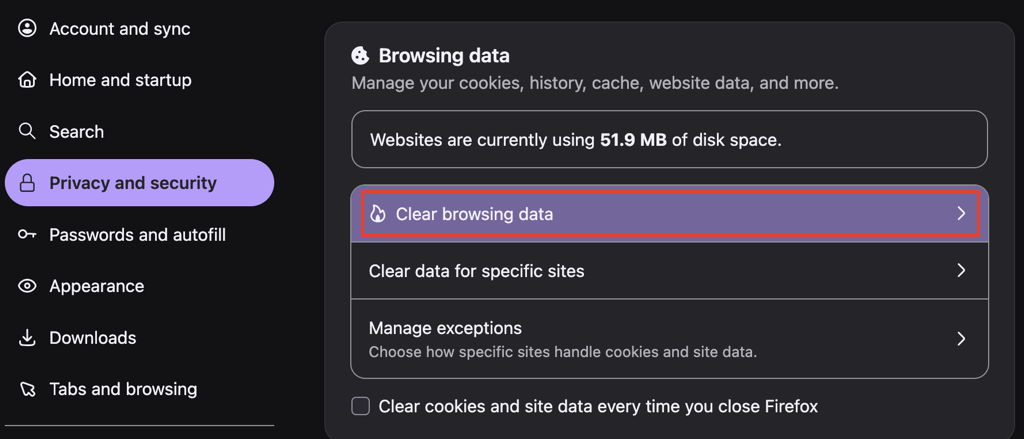
- Set the time range to clear to Everything, and select the items you would like to delete, including Cookies and site data and Temporary cached files and pages
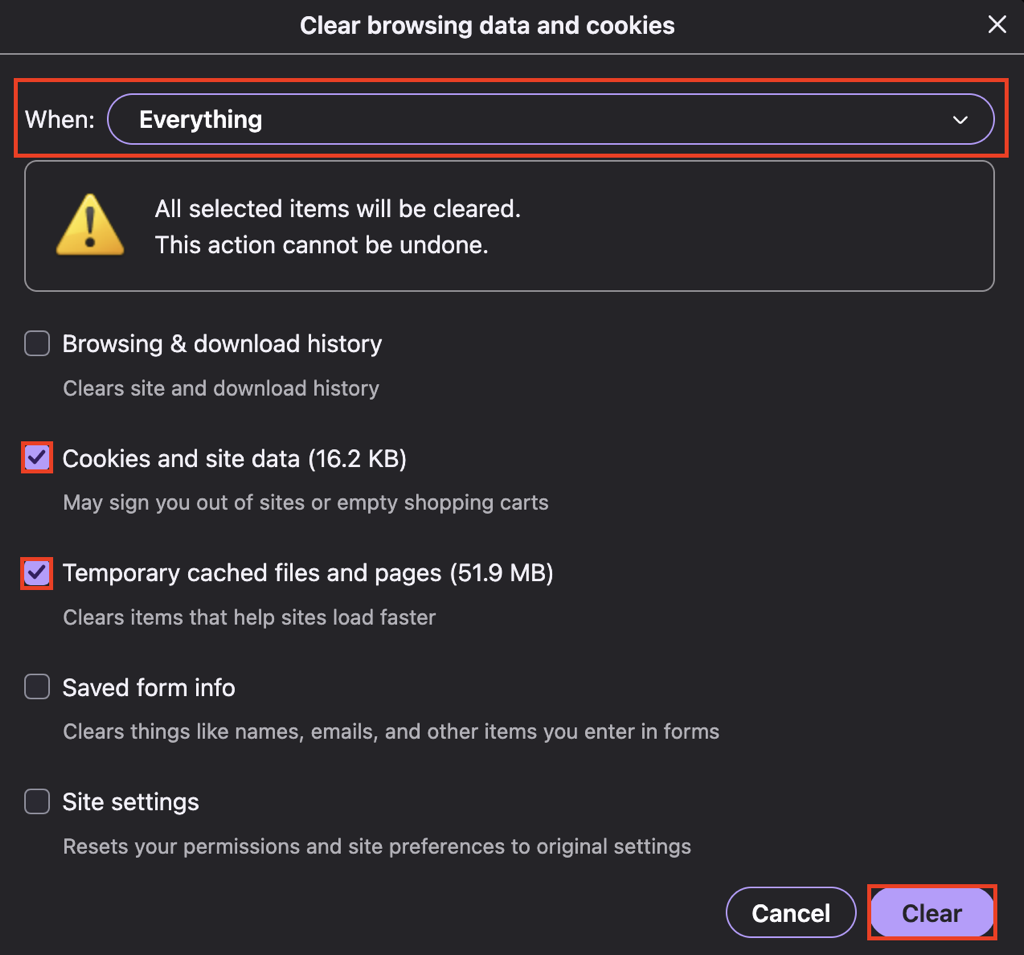
- Click Clear
Safari (Mac)
- From the main toolbar, navigate to History > Clear History…

- Select the time period for all history next to Clear

- Click Clear History
Related Articles
How do I sign into the LES MILLS+ website?
How many devices in a household can stream LES MILLS+?