TABLE OF CONTENTS
Quick guide by common devices
Android TV, Apple TV, and Roku
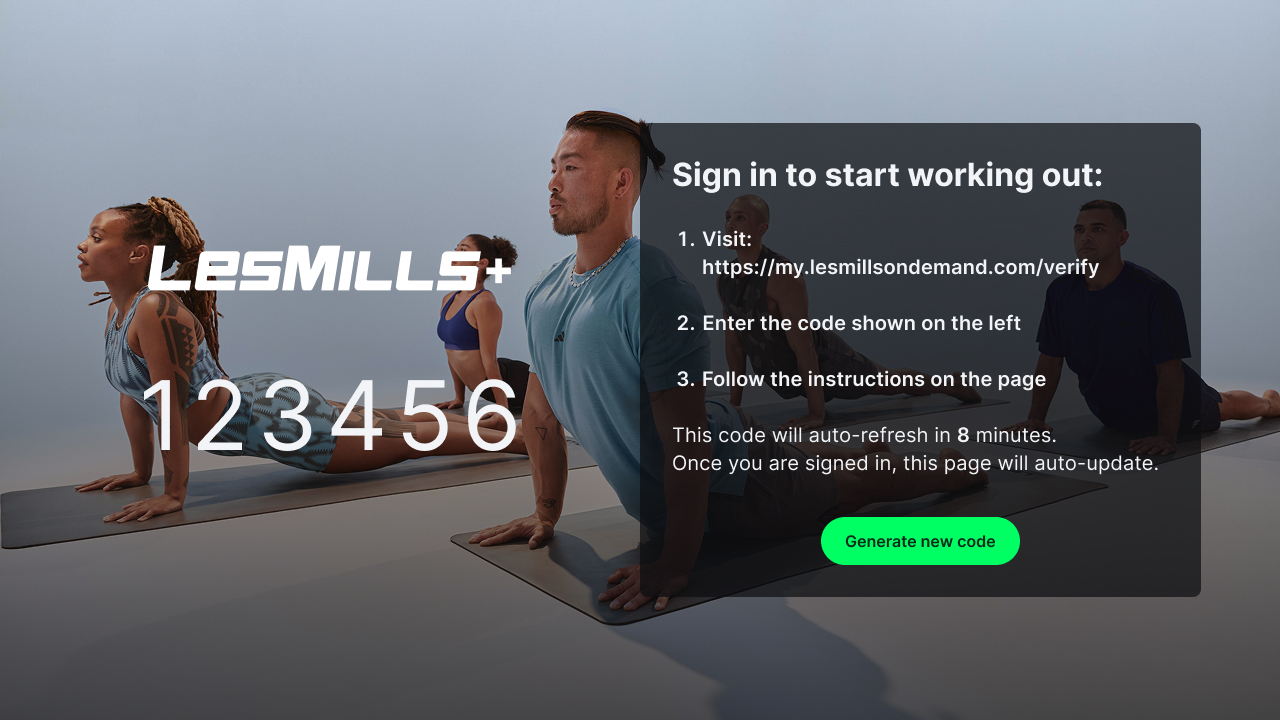
There are two different methods for signing in to LM+ on these devices: QR Code and URL.
1. Use your phone or tablet's camera to scan the QR code listed on your TV or visit https://my.lesmillsondemand.com/verify. You can also click "Generate New Code" if you're having trouble connecting.
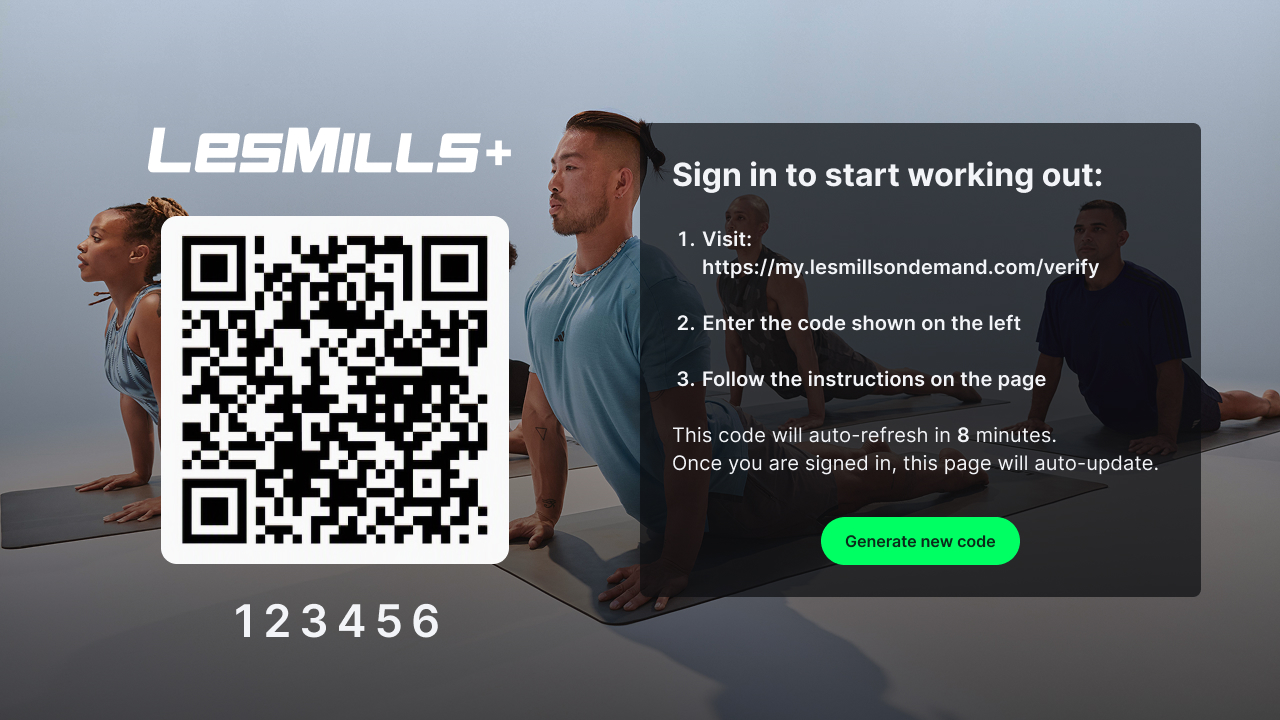
2. If you're using QR code, you'll see the following with your unique code already pre-populated. Click Accept.
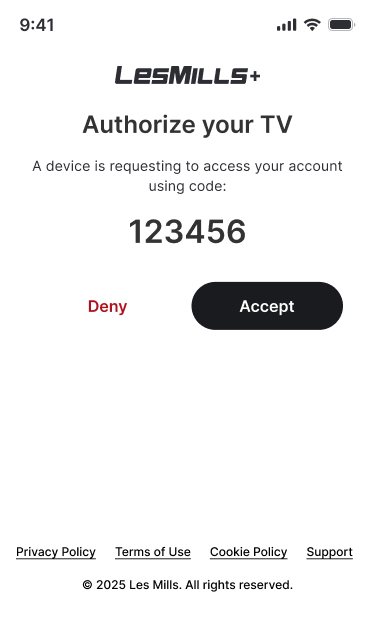
If you're using URL, you'll have to input the six-digit code on your TV screen. Click Continue.
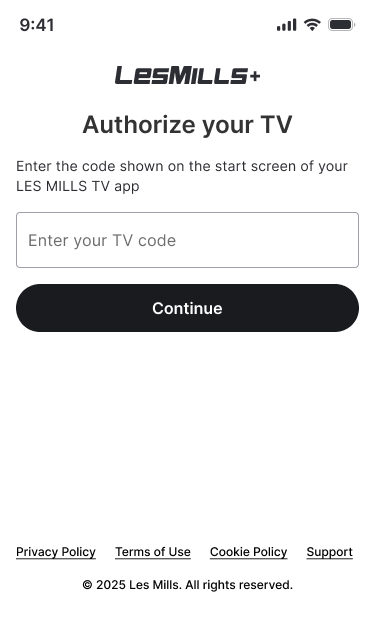
3. Enter in your LES MILLS+ login details. Click Log in.
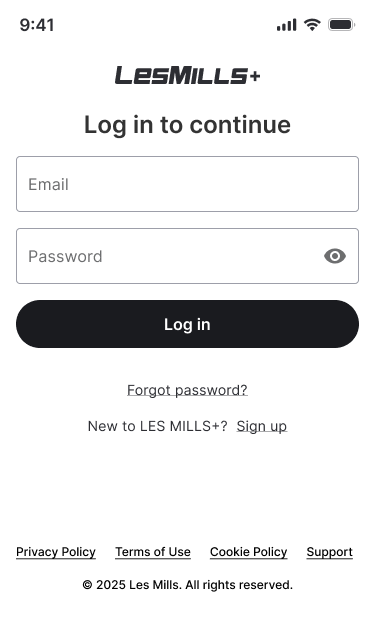
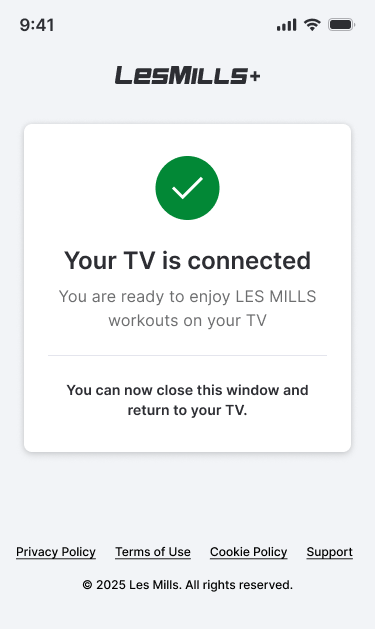
4. Once you see this screen, you're good to go! You should see the LM+ app on your TV update very soon and you're ready to enjoy your workouts.
Fire TV
You'll follow the same process as the Standard TV Activation journey at the top, but you will not see a QR code sign in option. You'll need to visit the URL listed on your TV instead.
Samsung TV and LG TV
- Download and open the LES MILLS+: home workout app on your TV device
- Click to SIGN IN and you should see the following screen, with your unique activation code to the bottom right

- Navigate to watch.lesmillsondemand.com/activate on another device, such as your phone or computer
- If you see the following screen, you will need to login prior to activating
If you are already signed in, please skip to Step 6
- Enter your email address and select NEXT
- From any device, open the email sent to you from us
- Click the link to confirm your sign in
- Navigate back to watch.lesmillsondemand.com/activate, and you will now see the following instead

- Enter the code from your TV into this screen, and click CONNECT DEVICE
Your TV screen will automatically update, and you are now ready to go!
FAQ
Why do I need to sign in?
You need to be signed in before you can activate, as the TV device is linking to that active subscription.
How do I know if I’m signed in?
If you are signed in, you will see a green profile circle in the top right of this page rather than the option to SIGN IN.
I can’t see the activation code, where is it?
You will only see the activation code when you are signed out of your TV device, and then start the sign in process.
If you need to re-activate your device (for example, if you’ve changed your email address), then please sign out first by going to Settings > Sign Out.
Why is the activation link broken?
If you have manually typed in the address, there is a chance it has not been typed correctly.
Please copy and paste or click this link directly to go to the activation page: https://my.lesmillsondemand.com/verify
Do I have to do this on my TV device?
No, you can sign in to your account and activate on whatever device you’d like! In fact, we recommend you do this on another device such as your phone or computer for a more seamless experience.
Related Articles
What devices can I use to watch LES MILLS+?
Do cookies need to be enabled on my computer?
How do I activate the LES MILLS+ app on my mobile or tablet?
How do I change my email address?
How many devices in a household can stream LES MILLS+?